Video Extension Feature Tutorial
Operation Is Simple — You Can Skip This Tutorial and Start Right Away
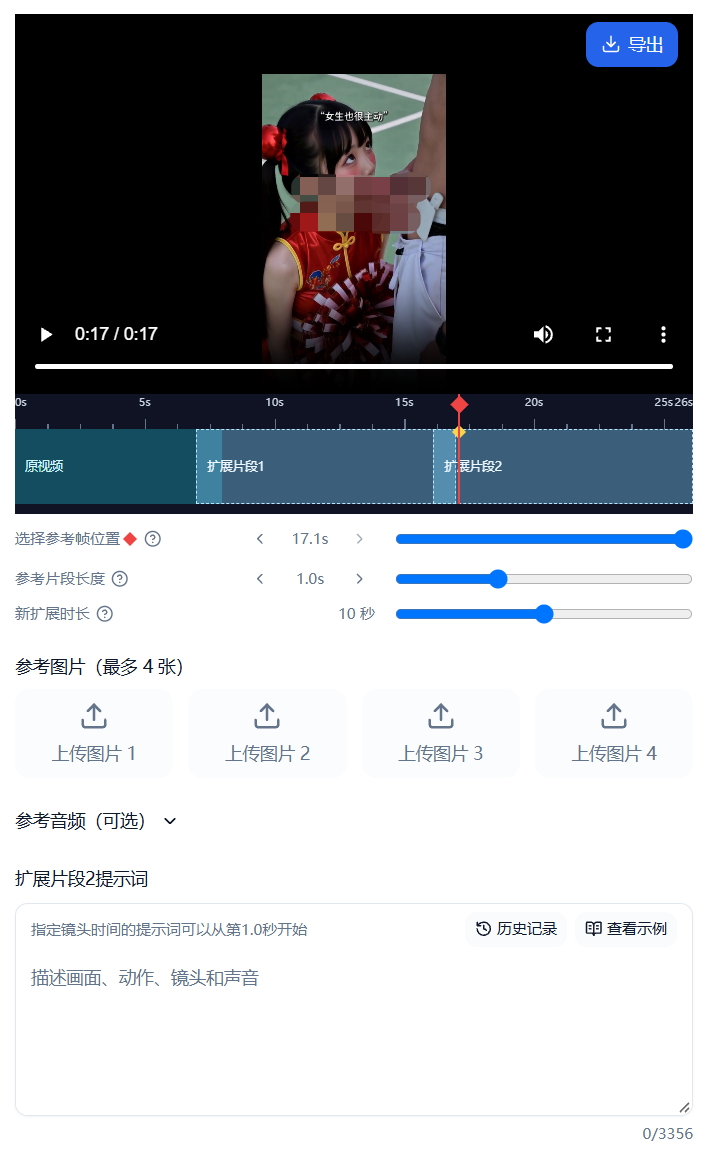
Video extension lets you continue generating subsequent frames from an existing video. You can specify where to pick up, provide the model with motion and visual context, then generate multiple segments in succession. Stitching is done locally in your browser, and you export the final piece yourself.
> Quick Start: Go to Video Generation → Extension → Upload source video → Set reference frame position and duration → Enter extension segment prompt → Click Start Generating Extension Segment 1 → After generation, click Export.
Workflow at a Glance
mermaid
flowchart LR
    A[Upload Source Video] --> B[Select Reference Frame Position]
    B --> C[Set Reference Segment Length & New Extension Duration]
    C --> D[Enter Current Extension Segment Prompt]
    D --> E[Generate Extension Segment 1]
    E --> F[Browser Downloads Segment & Stitches Locally]
    F --> G{Continue Extending?}
    G -- Yes --> H[Pick Continuation Point on Timeline]
    H --> D
    G -- No --> I[Export Final Video]
Each new extension record starts at Extension Segment 1. After a successful generation, the next segment is numbered Extension Segment 2, Extension Segment 3, and so on; failed tasks do not consume a segment number.
1. Upload Source Video
- Open the Video Generation tool and click Video Extension to enter extension mode.
- In the player area, click Upload Video or drag a video file into the upload zone.
- Wait for the video to load. A timeline appears below the player, and the canvas size auto-matches the source video.
The source video is the foundation for every extension segment. Segments depend sequentially on the finished output before them, so you must complete the current segment before generating the next.
2. Understanding the Player and Timeline
text
Time Scale  0s ─── 5s ─── 10s ─── 15s ─── 20s
           | Source Video (and prior completed content) | Ext Seg 1 | Ext Seg 2 |
           ↑ Yellow marker: current playback position
                     ◆ Red marker: reference frame position
- Click the time scale above: Moves playback to that time; player and timeline stay in sync.
- Drag the yellow playback marker: Scrub and preview on the final timeline.
- Drag the red diamond marker: Chooses the reference frame position for the currently selected extension segment; the player shows the frame at that position. You can also fine-tune with the slider or left/right arrows (one frame per click).
- Zoom the timeline: Hover the timeline and scroll the mouse wheel to zoom (page won’t scroll vertically). Hold Shift while scrolling or use a horizontal scroll wheel to pan left/right. Touch devices: pinch to zoom, single-finger drag to pan.
- Graduations: Zooming in refines the scale for precise positioning (up to 8×). Zooming out shows a wider overall range (up to ~2× the current total duration).
Reference Frame & Reference Segment
The red diamond marks the reference frame position. The reference segment is a short clip taken before that position to supply motion, camera, and scene context. The extension continues from the chosen position; everything before the reference frame remains from the previous video.
| Setting | Purpose | Recommendation |
|---|---|---|
| Select reference frame position | Decides from which moment in the source or current composition to continue | Drag the red diamond, watch the player; use arrow keys for frame-accurate adjustment |
| Reference segment length | Determines how much video context before the reference frame is provided | Default 1 s, usually fine; adjustable 0.5–2 s |
| New extension duration | Sets the length of the new segment to generate | Range depends on current resolution and admin config |
The browser uploads only the selected reference segment (max 2 s, max 10 MB), never the full source video. Reference images and audio can still be used and apply to the segment about to be generated.
3. Write Prompt & Generate
- On the timeline, select the extension segment you want to generate or edit.
- In the corresponding Extension Segment N Prompt box, describe the visuals, motion, camera, and sound.
- Near the prompt box you’ll see “Prompt with specified shot times can start at second X.” This time is relative to the current segment’s prompt start; click View Example to open a video-extension-specific template. Shot times in the template auto-adjust to the current start time.
- Verify the segment number on the button, then click Start Generating Extension Segment N. When re-generating an existing segment, the button reads Re-generate Extension Segment N.
Prompts can be specific, e.g.:
> Camera pushes forward steadily; protagonist turns to face the lens and smiles naturally, hem swaying gently in the breeze. Maintain original scene, character look, and lighting style; motion continuous, picture stable.
During generation a task record card appears. When finished, the browser fetches the segment and stitches it locally; keep the page open until stitching completes.
4. Continuously Extend Multiple Segments
After an extension segment is generated and stitched, it appears on the timeline. Click the next continuation point, enter that segment’s prompt, and start the next generation:
text
Source → Ext Segment 1 → Ext Segment 2 → Ext Segment 3
            ↑ Finish first      ↑ Then generate
Each segment depends on the video before it, so you cannot skip an unfinished segment and generate later ones prematurely. Segment numbers follow the order of valid segments in the current extension record.
5. Edit, Re-generate, or Delete Segments
Click a segment on the timeline to open its action menu:
- Play from Segment Start: Preview from the chosen segment’s beginning.
- Continue Extending from Segment End: Moves the reference position to the end of this segment, ready to generate what comes next.
- Edit Prompt: Loads the segment’s original prompt for modification.
- Copy Prompt: Copies the segment’s prompt.
- Delete This Segment: Removes this segment and all subsequent dependent segments, restoring the player to the composition before deletion.
When re-generating a completed segment that has later segments, the system prompts for confirmation. Because later segments were built on the old version, they must be removed together; otherwise the join may be discontinuous. In-progress tasks cannot be deleted; if the required local backup is unavailable, you must re-upload or restore the extension record first.
6. Extension Records & Saving the Final Video
Extension Records
In extension mode, click Extension Records (top-right) to view, restore, or delete locally saved extension projects. Records live in the current browser’s local storage and do not sync across devices or browsers.
Browser storage is limited (capacity set by device/browser). Clearing browser data or system space reclamation may make records or video resources unrecoverable. If a record shows “Resource unavailable,” re-upload the source video before continuing. In-progress extension records cannot be deleted.
Export Final Video
After stitching finishes, click Export in the black toolbar above the player to save the complete video locally. Export important works promptly — do not treat the browser extension record as your only backup.
> Web-based stitching uses your local browser and device resources. Browser performance limits apply; the desktop client offers a better experience.
FAQ
Why does the button say “Please upload video first”?
The current extension project has no usable source video. The generate button enables only after a video is uploaded.
Why do extension segments start numbering at 1?
Numbering reflects the segment order within the current extension record. Every new record begins at Extension Segment 1; numbers across different records are independent.
Why does changing an earlier segment affect later ones?
Later segments are generated continuing from the previous composition. Replacing an earlier segment leaves later ones attached to the old version, so the system requires deleting subsequent segments and re-generating from the new version.
Can I recover after closing the browser?
If the extension record and video resources were successfully saved locally, you can usually restore from Extension Records. However, insufficient browser space, data clearing, or system reclamation may prevent recovery. Export important results promptly.
Should I close the page during stitching?
Not recommended. The browser must download and stitch on your machine; wait for the completion notice before leaving. We recommend downloading our desktop client for a smoother experience.